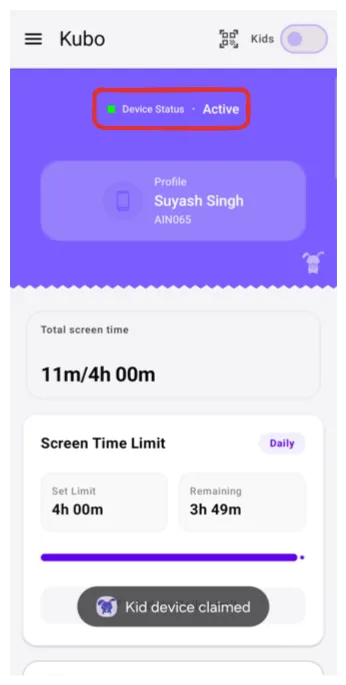
Parental Control that feels fair

Set healthy limits, block distractions, and keep kids safe online.

Everything you need, nothing you don’t.

Clear controls for parents. Simple rules for kids. Built for day-to-day life.

Control apps without micromanaging.

Not all screen time is equal. Encourage learning apps while limiting endless scrolling.

  • Block distracting apps instantly
  • Allow-list essentials (calls, maps, school)
  • Age-friendly categories
Parent Phone
Child Phone
The parents can manage access of the apps in the child phone.
Parent Phone
The parents can manage access of the apps in the child phone.
Safer browsing by default.

Protect them from inappropriate content without needing to monitor every click.

  • Block adult content + risky categories
  • Safe search support
Parent Phone
Child Phone
Parents can filter unsafe sites and see attempted visits.
Parent Phone
Parents can filter unsafe sites and see attempted visits.

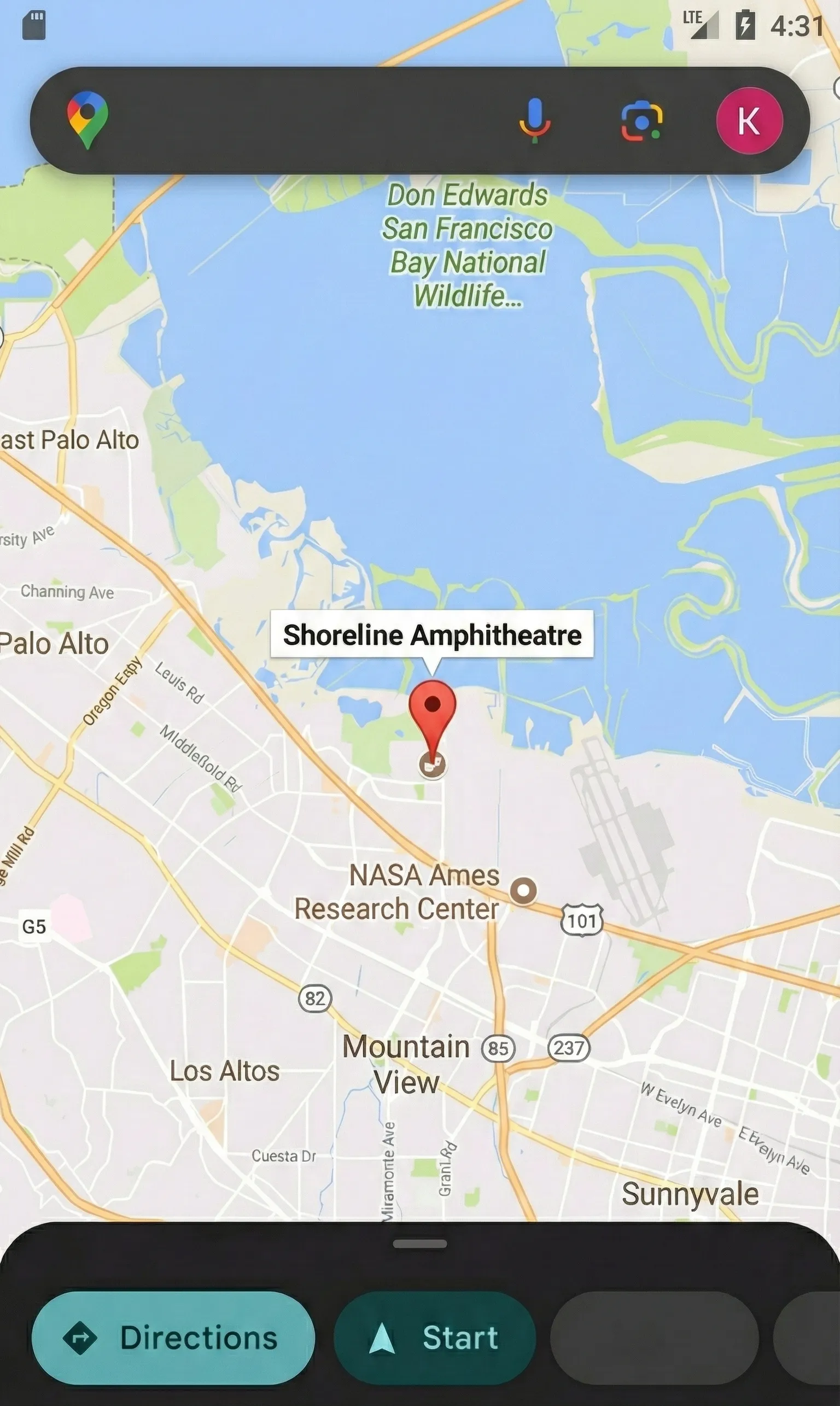
Open their location when they share it.

Open the live location of your child.

  • Opens the child's shared location in Maps
  • Shows the last location they sent
  • Quick “open in maps” action for fast pickup
Live location map view

How to Use.

A simple setup flow that doesn’t feel technical.

1

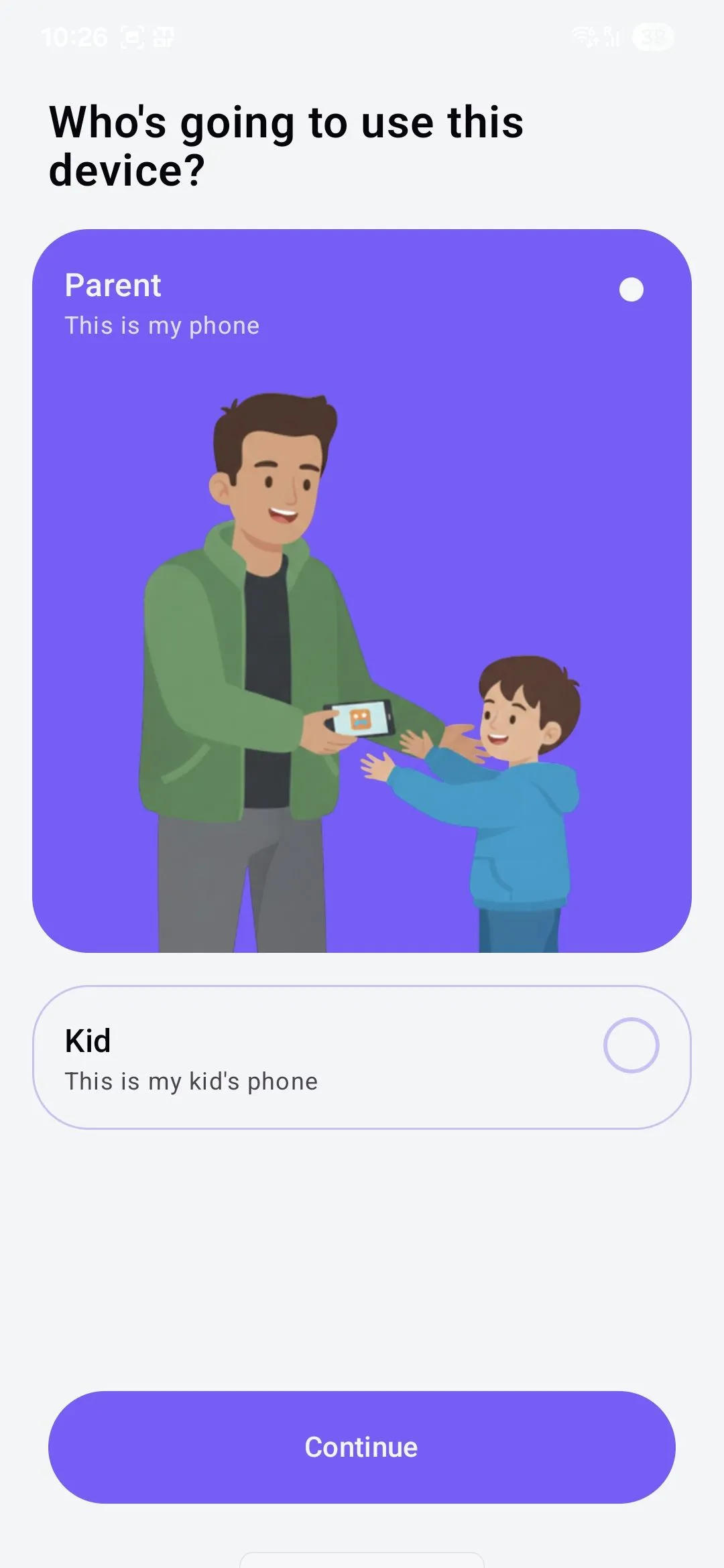
Install & Choose Profile

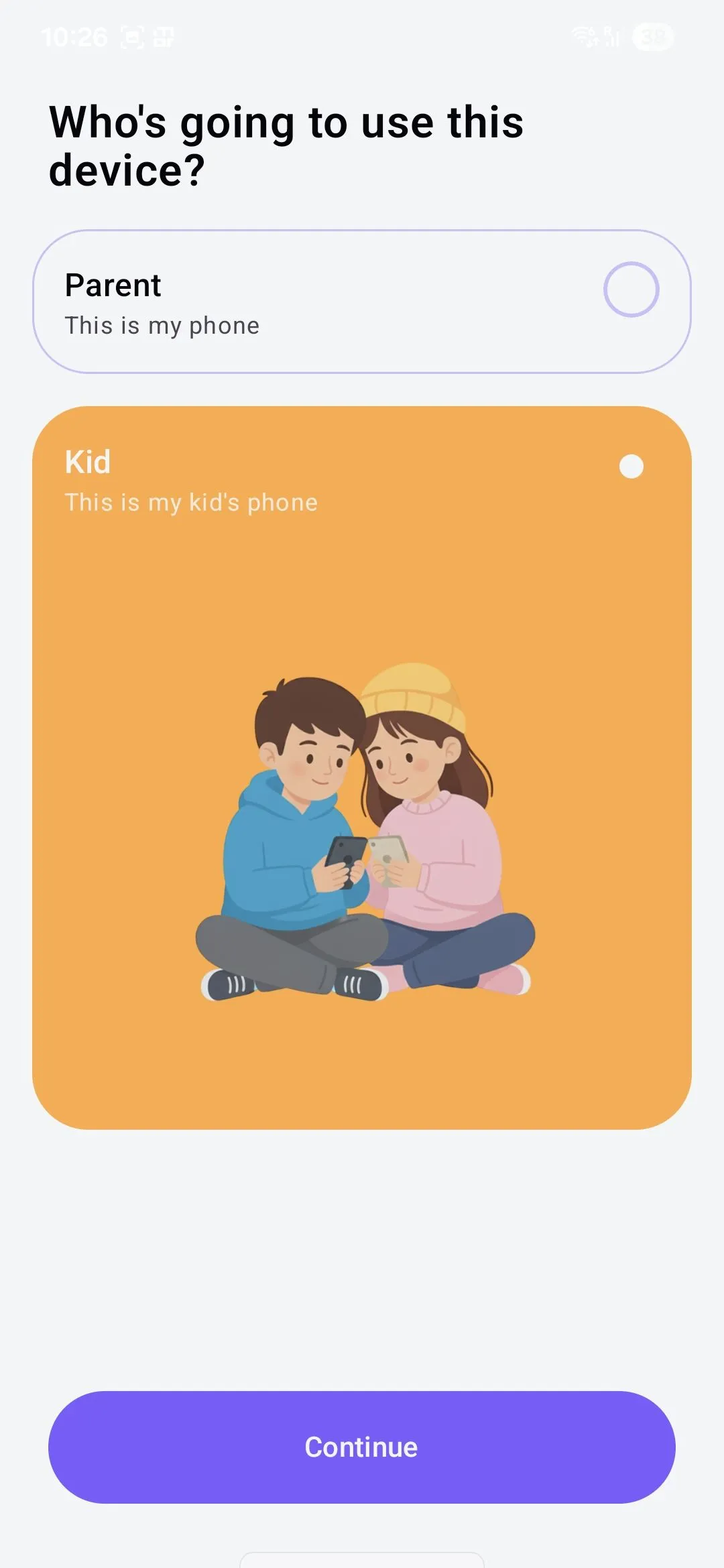
Select the role based on the phone's owner. Local Mode is available for both profiles.

Parent Profile
Parent Profile Selection
Child Profile
Child Profile Selection
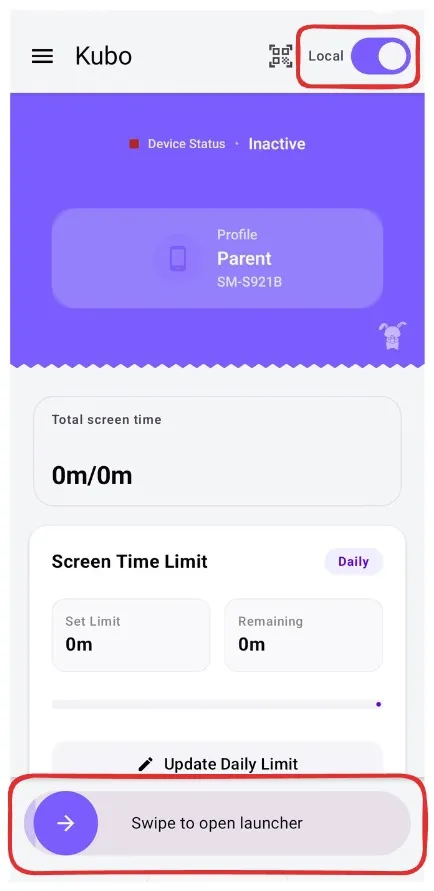
Parent Home Screen
2a

Parent Mode

Toggle Local Mode, set limits, and swipe the bottom slider to launch.

2b

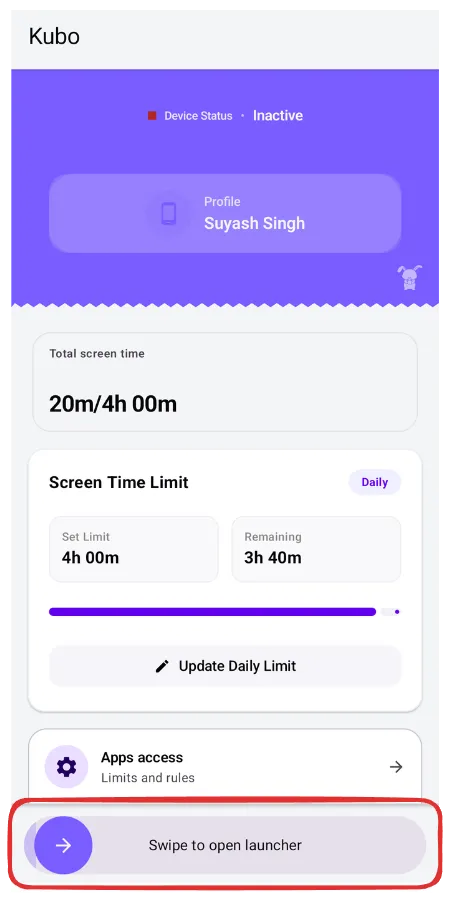
Kid Mode

Kid Home Screen

Configure apps, and swipe the bottom slider to launch.

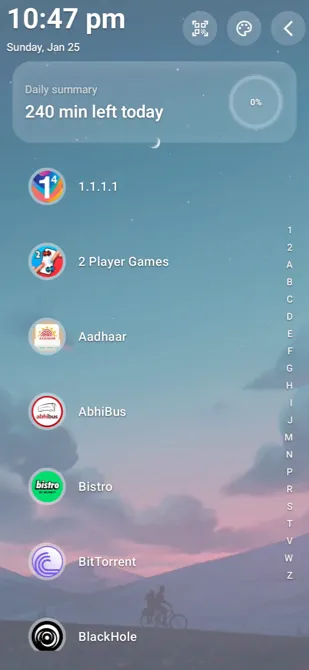
Kubo Launcher Active
3

Kubo Launcher Activated

Launcher is live! It is now ready to use.

1

Install & Choose Profile

Choose the profile based on who the phone will belong to.

Child's Device
Child Profile Selection
Parent's Device
Parent Profile Selection
2

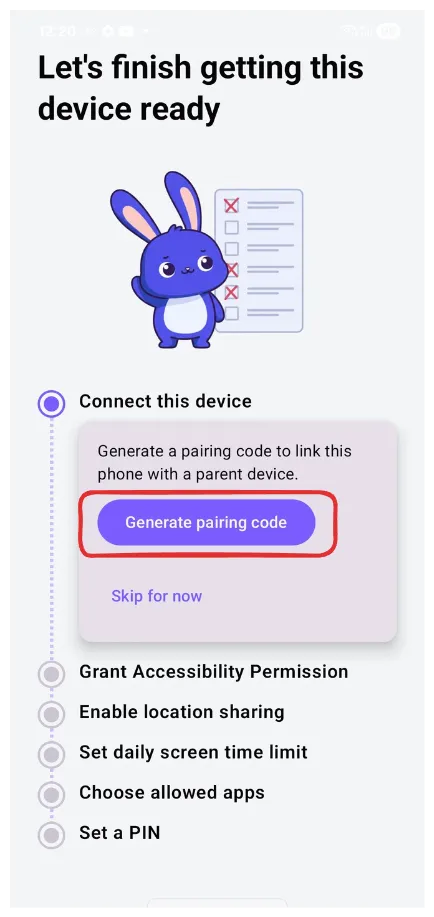
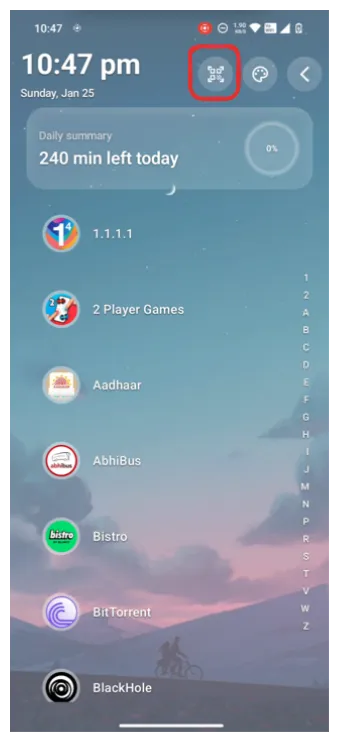
Generate Code

Get the QR code from the child's device.

During Onboarding
Generate QR during onboarding
OR
From Launcher
Generate QR from launcher
3

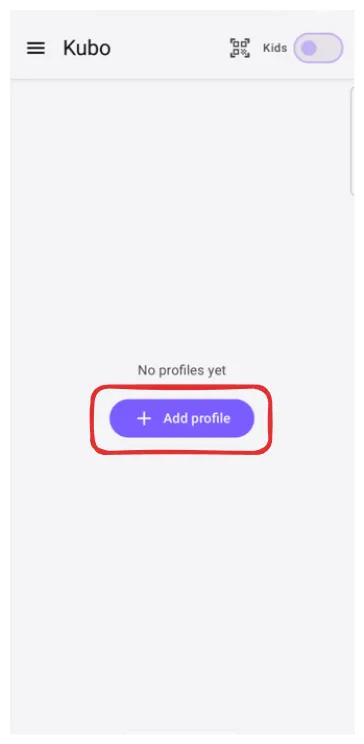
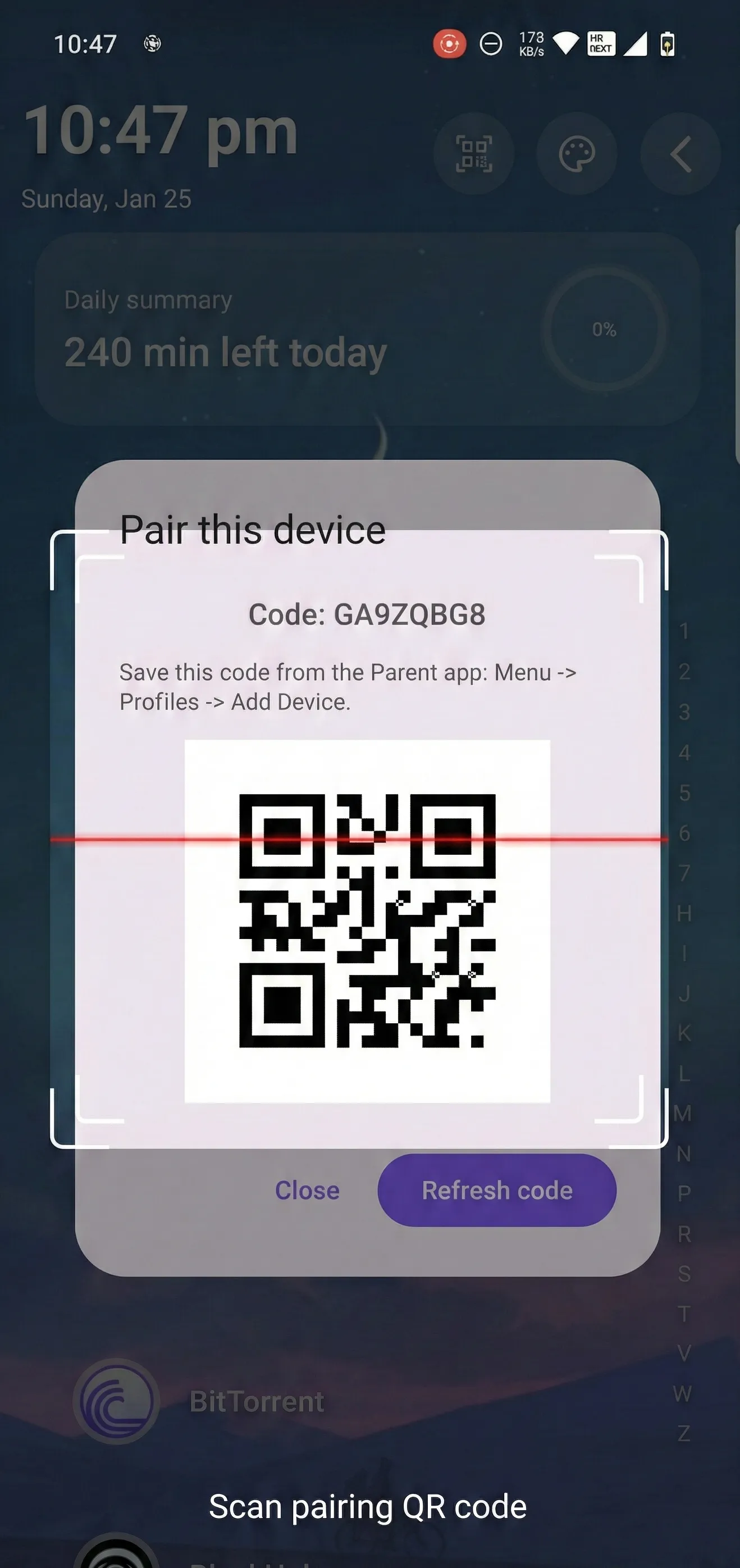
Open Parent Scanner

Scan the child's QR code.

Tap "Add Profile"
Add Profile Button
Scan QR
Scanning QR Code
4

Successfully Paired

Now both apps are paired. You can leverage all Kubo features.

Successfully Paired

FAQ

Quick answers to common questions.

Does Kubo work on tablets?

Yes, design for phones first, but the controls translate well to tablets.